
Laptop Running Slow? Boost Performance for Free with These Simple Settings
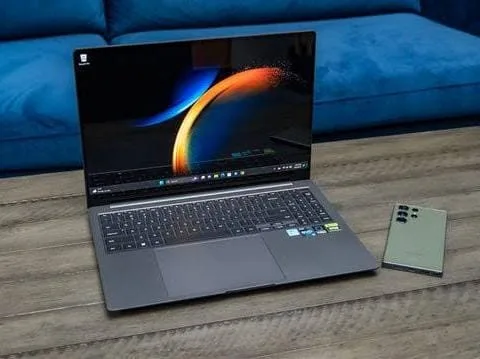
Laptop Running Slow? Boost Performance for Free with These Simple Settings
Is your laptop slowing down? Discover easy, no-cost tips to improve laptop speed, optimize performance, and avoid buying a new device.
Laptop Speed Increase Tips: How to Make Your System Faster Without Spending Money
Pune, March 22: With laptops becoming essential for personal, academic, and professional tasks, a slow system can disrupt productivity and cause frustration—especially during critical work. However, experts suggest that a sluggish laptop does not always indicate a hardware failure or the need for a costly upgrade.

In many cases, minor adjustments and regular maintenance can significantly improve system performance.
Why Do Laptops Slow Down?
Contrary to popular belief, a slow laptop is not always due to hardware issues. Common causes include:
- Too many background applications
- Full storage capacity
- Accumulation of junk and temporary files
Over time, these factors reduce system efficiency, leading to slower performance.
Manage Startup Applications
Many applications automatically start when the laptop boots, increasing system load.
Steps to fix:
- Open Task Manager (Ctrl + Shift + Esc)
- Navigate to the Startup tab
- Disable unnecessary apps
This helps the laptop boot faster and reduces initial system strain.
Clear Junk Files and Cache
Temporary files and cache can occupy significant storage space.
What to do:
- Search for “Disk Cleanup” and remove unwanted files
- Clear browser history and cookies
- Move large or old files to cloud storage or external drives
Freeing up space can noticeably improve performance.
Reduce Visual Effects
Advanced animations and graphics may look appealing but can slow down older systems.
Steps:
- Go to System Properties
- Select “Adjust for best performance”
- Enable “Best Performance” mode in power settings
This may simplify the appearance but boosts speed.
Keep Software Updated and Maintain Hardware
Regular maintenance is key to long-term performance.
- Update operating system and drivers periodically
- Clean dust from vents and fans to prevent overheating
Proper upkeep ensures smoother functioning and prevents performance drops.
Conclusion
Before considering a new purchase or expensive repairs, users are advised to try these simple fixes. In most cases, small tweaks and regular care can restore a laptop’s speed and efficiency.
Disclaimer:
This article is intended for general informational purposes only. Performance improvements may vary depending on device specifications, age, and existing hardware conditions. Users should exercise caution while changing system settings and seek professional assistance if required.